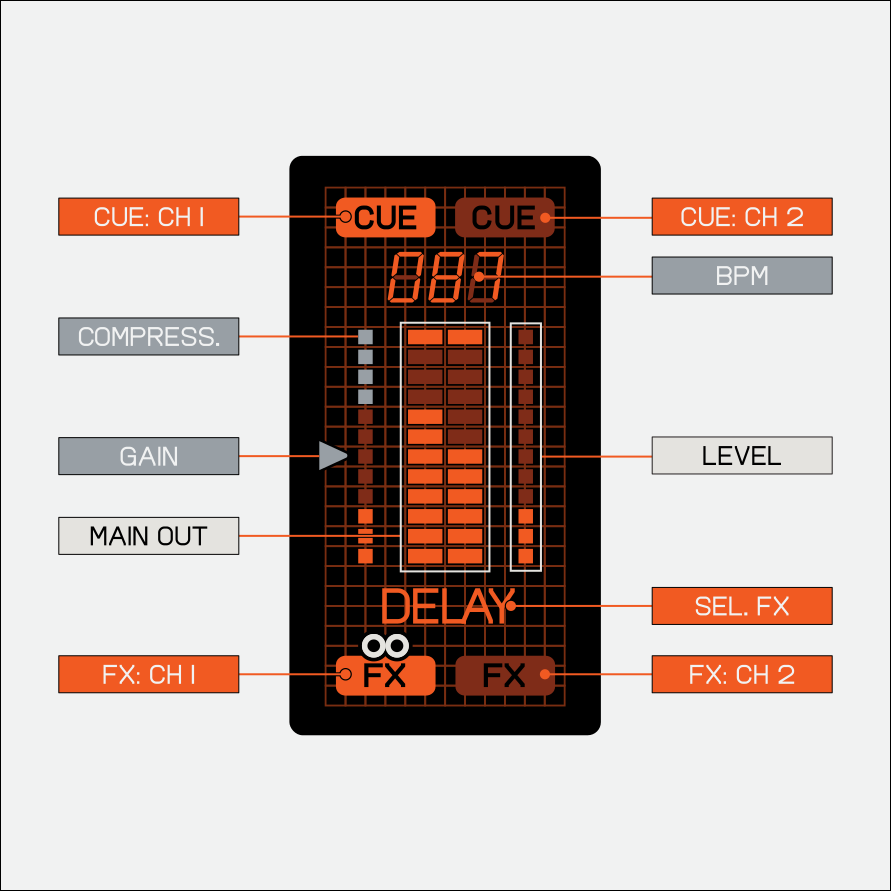
when you first turn on your K.O.–sidekick you will see the main screen.
here you can see all the most useful information at a glance.
the gain knob on each channel allows you to control gain, pan, compression and compression mode.
gain
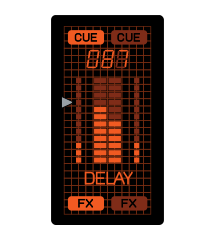
view gain
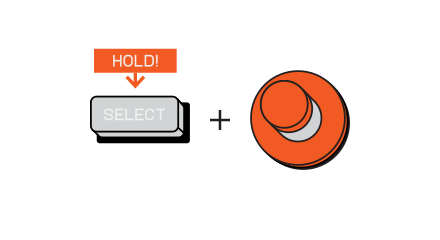
when in the main screen, hold (select) and turn the gain knob to adjust the gain and see it’s value.
gain

when in the main screen, turn the gain knob to increase or decrease the gain on a channel.
gain
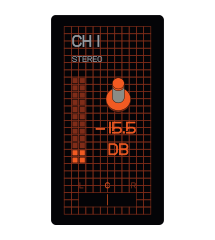
channel screen
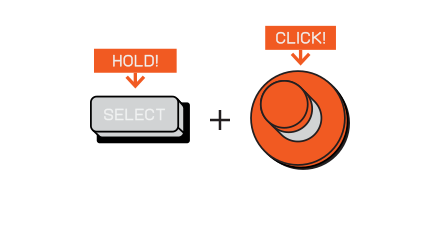
hold (select) and click the gain knob to view the channel screen.
here you can view and edit your exact gain level and pan.
gain
rotate the gain knob while in the gain menu to change the amount of gain.
pan
hold (select) and rotate the gain knob to adjust pan.
this will move the audio left or right.
exit channel screen
press (select) to exit the gain menu and return to the main screen.
compressor
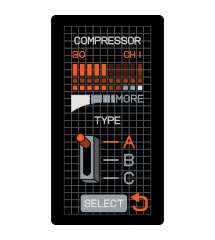
compressor menu
click the gain knob to enter the compressor menu. here you can view and edit the compressor.
compression
rotate the gain knob while in the compressor menu to change the amount of compression.
compressor type
when in the compressor menu, hold (select) and rotate the gain knob to select the compressor type.
exit compressor
press (select) to exit the compressor menu and return to the main screen.
each channel features three eq knobs; high, mid and low. use them to accentuate, attenuate or remove high, mid or low frequencies from your mix.
the eq knobs can be a great way to mix two audio signals. use them to remove frequencies from one channel while maintaining them in the other.
eq
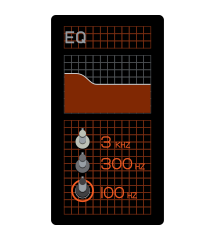
high
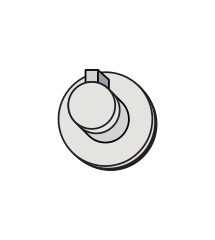
turn the high knob to the right to increase the level of incoming high frequencies or turn it to the left to decrease them.
mid
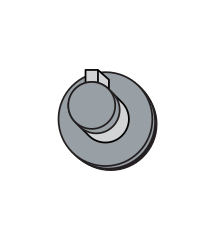
turn the mid knob to the right to increase the level of incoming mid frequencies or turn it to the left to decrease them.
low
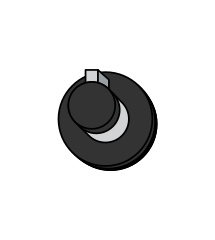
turn the low knob to the right to increase the level of incoming low frequencies or turn it to the left to decrease them.
you can adjust the behaviour of the eq knobs in the system settings.
each channel has a cue button, use it to send an audio signal through the cue output on the bottom of K.O.–sidekick.
you can use cue to preview an audio signal before bringing it into your main mix allowing you to make adjustments and create the perfect transition!
cue
cue
press the (cue) button on a channel to send the audio from that channel through the cue output. by default, when sending to cue the level and fx will be bypassed, allowing you to balance your signals before bringing them in. the detected bpm of the channel will show on the screen.
main cue
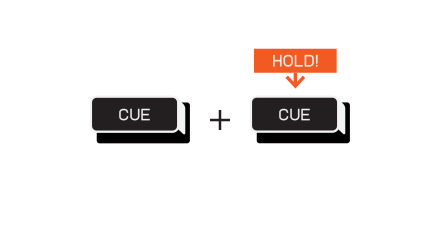
pressing and holding both (cue) buttons together will enable main cue, this sends the main output through the cue output,
great for when you just want to monitor your mix. press either of them again to turn it off.
tempo screen
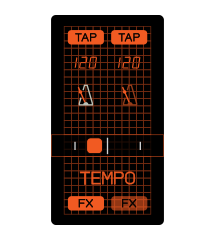
tempo screen
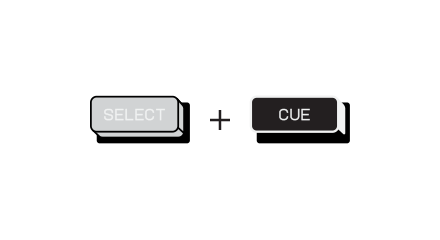
press (select) and (cue) to enter the tempo screen.
here you can view and edit the detected tempo on a channel.
tap tempo
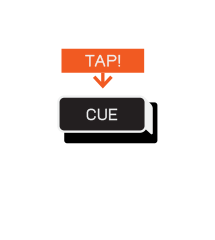
while in the tempo screen, tap (cue) on the channel you wish to edit the tempo of repeatedly.
enable/disable tempo tracking
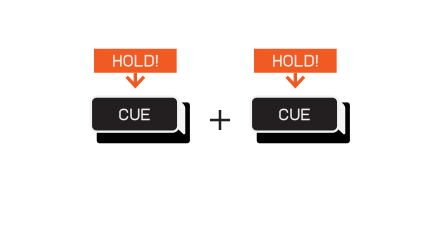
press and hold one or both of the (cue) buttons while in the tempo screen to enable tempo tracking only on those channels. the selected tempo source will be used to sync effects.
you can choose to have one tempo source used by both effects or have each effect use the tempo from its respective channel.
exit tempo
press (select) to exit the tempo screen.
try using the cue out in combination with the aux input to send and return audio through an fx pedal.
each channel has a fader which controls the level of outgoing audio to the main output.
the level fader applies no positive gain. when moved all the way down the level will be 0 and no audio will come from that channel.
use them to balance your mix or to quickly bring audio in and out!
level

move the fader up to increase the level of the chosen channel or down to decrease it.
check level
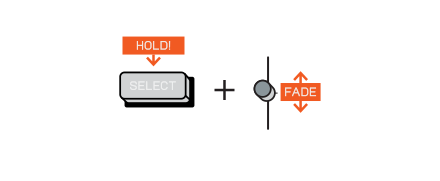
hold (select) and move a fader to see the exact level on that channel.
its important to remember that the faders only apply to the main mix (which comes out of the main output) and not the cue mix, unless main cue has been enabled.
each channel has an fx button which allows you to add fx to that channel.
fx are great for transitions, and can be a fun way to create variations when performing live!
edit fx

press an (fx) button to edit the fx on that channel.
press it again to return to the main screen.
select fx
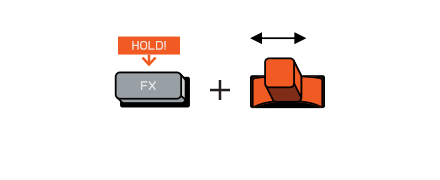
hold (fx) and move the mod stick to change the fx on a channel.
engage the fx
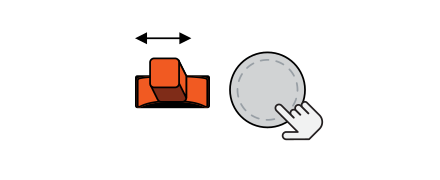
use the mod stick and force pad to engage the fx.
fx only apply when using the mod stick and force pad, unless they are locked or recorded.
lock fx value
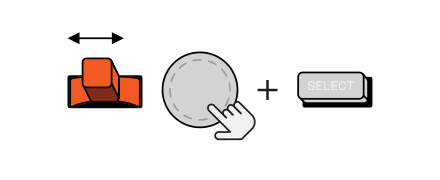
while modulating the fx with the mod stick and force pad, press select to lock the current value.
use the mod stick or force pad to release the lock.
record an fx sequence
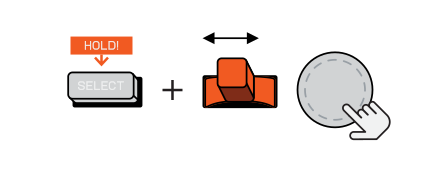
hold select then use the mod stick or force pad to record an fx sequence.
the moment you let go of select the sequencer will stop recording and immediately loop. you can exit a sequence by moving the mod stick or force pad.
modulate multiple fx
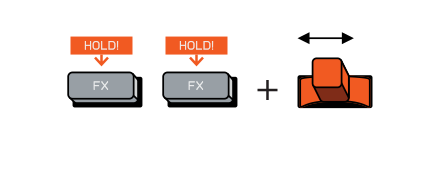
hold both (fx) buttons down then use the mod stick and force pad to engage both fx at once
serial fx mode
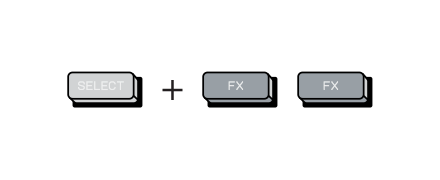
press (select) and both (fx) buttons to engage the serial fx mode.
this will send the master out first through the fx on channel 1 and then through the fx on channel 2, allowing you to use both fx on both signals. exit it by pressing this combo again.
learn more about what fx are available and how to use them in the fx section of the guide.
the force pad is a pressure sensitive pad that is used to modulate effects and occasionally make selections.
the force pad

press the force pad to modulate the currently selected fx.
record the force pad
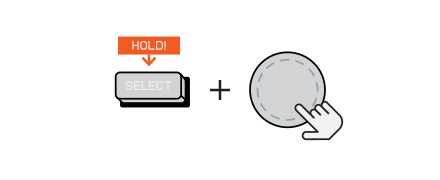
hold (select) and press the force pad to record it’s modulation into the fx sequencer.
the moment you release select the recording will end and the sequencer will loop.
depending on the selected fx, the force pad will control different parameters. you can learn more about each effect in the fx section of the guide.
the mod stick is a bender that is used as both a modulator (for fx) and a selector (when scrolling through lists),
the mod stick
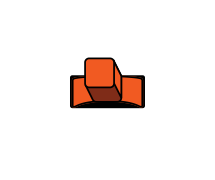
bend the mod stick left or right to modulate the currently selected fx.
record the mod stick
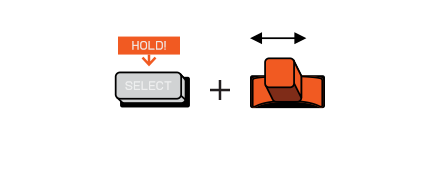
hold (select) and bend the mod stick to record it’s modulation into the fx sequencer.
the moment you release select the recording will end and the sequencer will loop.
system settings
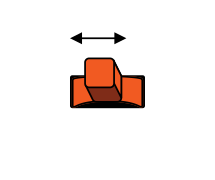
when in system settings, the mod stick is used as a cursor to select from the available options.
depending on the selected fx, the mod stick will control different parameters. you can learn more about each effect in the fx section of the guide.
the select button serves multiple functions, depending on the screen and button it is used with.
the select button
on it’s own, the (select) button will not have any function, however combining it with other button and knobs will change what it does.
tempo menu
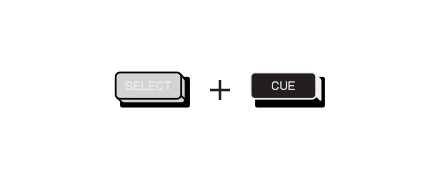
press (select) and (cue) to enter the tempo screen.
here you can view and edit the detected tempo on a channel.
channel screen
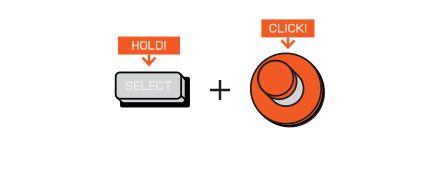
hold (select) and click the gain knob to view the channel screen.
here you can view and edit your exact gain level and pan.
check level
hold (select) and move a fader to see the exact level on that channel.
lock fx value
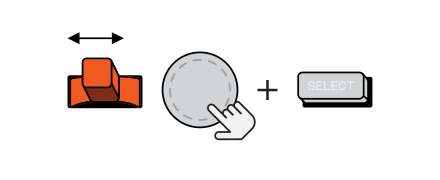
while modulating the fx with the mod stick and force pad, press select to lock the current value.
use the mod stick or force pad to release the lock.
record an fx sequence
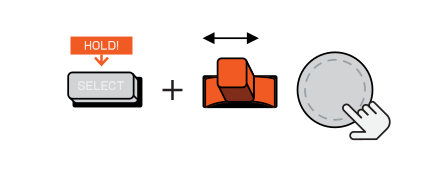
hold (select) then use the mod stick or force pad to record an fx sequence. the moment you let go of select the sequencer will stop recording and immediately loop.
you can exit a sequence by moving the mod stick or force pad.


