ep-35
multi–input
speaker/amp
with built–in fx
speaker/amp
with built–in fx
user guide
ver 1.0.1
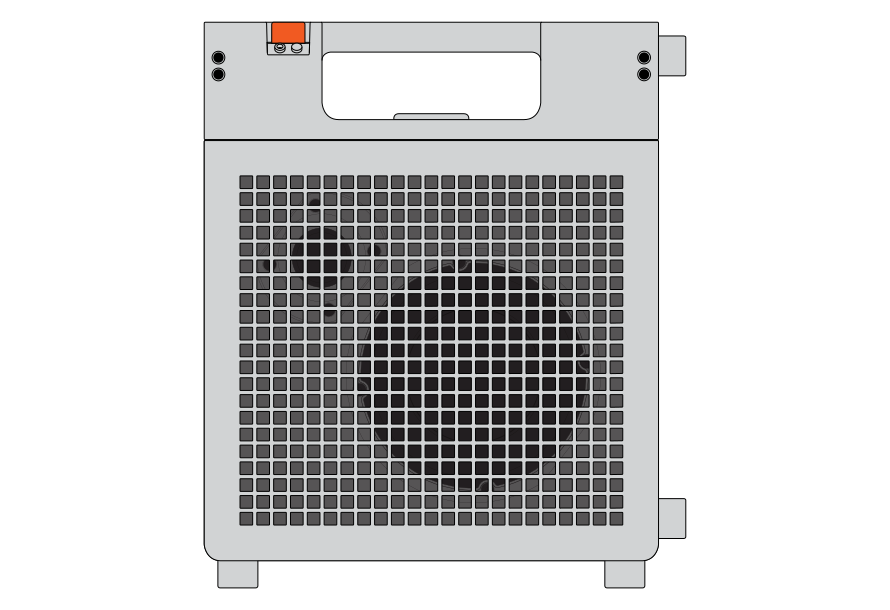
EP–35 is a multi-input amplifier with a line input, a microphone input, a guitar input, as well as audio over bluetooth and usb. it features eight fx on the microphone input and eight fx on the guitar input. it also has a storage compartment for holding cables, accessories, or beer.
use EP–35 as a hub for all your audio- producing devices, or connect one at a time to use it as a portable speaker. connect multiple EP–35 together wirelessly using the broadcast mode for a more immersive audio experience.
notice. read this first.
protect your hearing.
be careful when turning up the volume and do not listen too close to the speaker at
high volume for a long time.
before connecting this unit to other devices, turn off the power to all units. this will help prevent malfunctions
and/or damage to speakers or other devices.
never connect the 3.5mm plugs going from the EP–35 unit's inputs or outputs to a microphone input with active phantom power. this could damage the EP–35.
be sure to charge the unit using only USB-PD usb power, such as that from the usb ports of a computer, or by using a dedicated usb-if compliant charger.
make sure you always have the EP–35 placed so it is level and sure to remain stable.
EP–35 is splash resistant (sweat, accidental spills), but not fully waterproof. do not immerse in water or
charge in wet areas.
ensure the input and output ports are fully dry before using. if any water or dirt finds its way into the ports, let them dry, then clean them with compressed air or electronic contact cleaner.
ensure the usb-c port is fully dry before charging.
CHOKING HAZARD: This product contains small removable plastic parts. To avoid danger of suffocation or choking, keep these parts away from babies and young children.
be careful when turning up the volume and do not listen too close to the speaker at
high volume for a long time.
before connecting this unit to other devices, turn off the power to all units. this will help prevent malfunctions
and/or damage to speakers or other devices.
never connect the 3.5mm plugs going from the EP–35 unit's inputs or outputs to a microphone input with active phantom power. this could damage the EP–35.
be sure to charge the unit using only USB-PD usb power, such as that from the usb ports of a computer, or by using a dedicated usb-if compliant charger.
make sure you always have the EP–35 placed so it is level and sure to remain stable.
EP–35 is splash resistant (sweat, accidental spills), but not fully waterproof. do not immerse in water or
charge in wet areas.
ensure the input and output ports are fully dry before using. if any water or dirt finds its way into the ports, let them dry, then clean them with compressed air or electronic contact cleaner.
ensure the usb-c port is fully dry before charging.
CHOKING HAZARD: This product contains small removable plastic parts. To avoid danger of suffocation or choking, keep these parts away from babies and young children.
Safety Protection Failure: Replacement of a battery with an incorrect type that can defeat a safeguard.
Explosion Hazard (Physical): Disposal of a battery into fire or a hot oven, or mechanically crushing or cutting of
a battery, that can result in an explosion.
Environmental Hazard: Leaving a battery in an extremely high temperature surrounding environment that can result in an explosion or the leakage of flammable liquid or gas; a battery subjected to extremely low air
pressure that may result in an explosion or leakage.
Battery Disposal: The battery inside the product may contain substances harmful to the environment. When disposing of the device, ensure the process complies with local environmental/electronic recycling guidelines.
battery replacement and charging should be performed by adults or under close adult supervision.
RECYCLING
electrical and electronic equipment, parts and batteries marked with this crossed-out wheelie bin symbol must not be disposed of with normal household WASTE, it must be collected and disposed of separately to protect the environment. this product contains a built-in Li-Ion battery.
Explosion Hazard (Physical): Disposal of a battery into fire or a hot oven, or mechanically crushing or cutting of
a battery, that can result in an explosion.
Environmental Hazard: Leaving a battery in an extremely high temperature surrounding environment that can result in an explosion or the leakage of flammable liquid or gas; a battery subjected to extremely low air
pressure that may result in an explosion or leakage.
Battery Disposal: The battery inside the product may contain substances harmful to the environment. When disposing of the device, ensure the process complies with local environmental/electronic recycling guidelines.
battery replacement and charging should be performed by adults or under close adult supervision.
RECYCLING
electrical and electronic equipment, parts and batteries marked with this crossed-out wheelie bin symbol must not be disposed of with normal household WASTE, it must be collected and disposed of separately to protect the environment. this product contains a built-in Li-Ion battery.
FCC STATEMENT
1. This device complies with Part 15 of the FCC Rules. Operation is subject to the following two conditions:
(1) This device may not cause harmful interference, and (2) This device must accept any interference received, including interference that may cause undesired operation. 2. Changes or modifications not expressly approved by the party responsible for compliance could void the user's authority to operate the equipment. NOTE: This equipment has been tested and found to comply with the limits for a Class B digital device, pursuant to Part 15 of the FCC Rules. These limits are designed to provide reasonable protection against harmful interference in a residential installation. This equipment generates, uses and can radiate radio frequency energy and, if not installed and used in accordance with the instructions, may cause harmful interference to radio communications. However, there is no guarantee that interference will not occur in a particular installation. If this equipment does cause harmful interference to radio or television reception, which can be determined by turning the equipment off and on, the user is encouraged to try to correct the
interference by one or more of the following measures: Reorient or relocate the receiving antenna. Increase
the separation between the equipment and receiver. Connect the equipment into an outlet on a circuit different from that to which the receiver is connected. Consult the dealer or an experienced radio/TV
technician for help.
FCC ID: Z23035A
1. This device complies with Part 15 of the FCC Rules. Operation is subject to the following two conditions:
(1) This device may not cause harmful interference, and (2) This device must accept any interference received, including interference that may cause undesired operation. 2. Changes or modifications not expressly approved by the party responsible for compliance could void the user's authority to operate the equipment. NOTE: This equipment has been tested and found to comply with the limits for a Class B digital device, pursuant to Part 15 of the FCC Rules. These limits are designed to provide reasonable protection against harmful interference in a residential installation. This equipment generates, uses and can radiate radio frequency energy and, if not installed and used in accordance with the instructions, may cause harmful interference to radio communications. However, there is no guarantee that interference will not occur in a particular installation. If this equipment does cause harmful interference to radio or television reception, which can be determined by turning the equipment off and on, the user is encouraged to try to correct the
interference by one or more of the following measures: Reorient or relocate the receiving antenna. Increase
the separation between the equipment and receiver. Connect the equipment into an outlet on a circuit different from that to which the receiver is connected. Consult the dealer or an experienced radio/TV
technician for help.
FCC ID: Z23035A
IC warning
English: This device contains licence-exempt transmitter(s)/receiver(s) that comply with Innovation, Science and Economic Development Canada's licence-exempt RSS(s). Operation is subject to the following two conditions: (1) This device may not cause interference; and (2) This device must accept any interference,
including interference that may cause undesired operation of the device.
French: Cet appareil contient des metteurs / rcepteurs exempts de licence conformes aux RSS (RSS)d'Innovation, Sciences et Dveloppement conomique Canada. L'exploitation est autorisee auxdeux
conditions suivantes : (1) l'appareil ne doit pas produire de brouillage, et (2) l'utilisateur de l'appareil doit accepter tout brouillage radio electrique subi, meme si le brouillage est susceptible d'en compromettre le fonctionnement."
IC: 9915A-035A
NCC warning
取得審驗證明之低功率射頻器材,非經核准,公司、商號或使用者均不得擅自變更頻率、加大功率或變更原設
計之特性及功能。低功率射頻器材之使用不得影響飛航安全及干擾合法通信;經發現有干擾現象時,應立即停
用,並改善至無干擾時方得繼續使用。前述合法通信,指依電信管理法規定作業之無線電通信。低功率射頻器
材須忍受合法通信或工業、科學及醫療用電波輻射性電機設備之干擾。
rcm:
English: This device contains licence-exempt transmitter(s)/receiver(s) that comply with Innovation, Science and Economic Development Canada's licence-exempt RSS(s). Operation is subject to the following two conditions: (1) This device may not cause interference; and (2) This device must accept any interference,
including interference that may cause undesired operation of the device.
French: Cet appareil contient des metteurs / rcepteurs exempts de licence conformes aux RSS (RSS)d'Innovation, Sciences et Dveloppement conomique Canada. L'exploitation est autorisee auxdeux
conditions suivantes : (1) l'appareil ne doit pas produire de brouillage, et (2) l'utilisateur de l'appareil doit accepter tout brouillage radio electrique subi, meme si le brouillage est susceptible d'en compromettre le fonctionnement."
IC: 9915A-035A
NCC warning
取得審驗證明之低功率射頻器材,非經核准,公司、商號或使用者均不得擅自變更頻率、加大功率或變更原設
計之特性及功能。低功率射頻器材之使用不得影響飛航安全及干擾合法通信;經發現有干擾現象時,應立即停
用,並改善至無干擾時方得繼續使用。前述合法通信,指依電信管理法規定作業之無線電通信。低功率射頻器
材須忍受合法通信或工業、科學及醫療用電波輻射性電機設備之干擾。
rcm:

what's in the box
check that the following items
are included when you open the box
EP–35
quick start guide
cardboard box
index
click on the section you
want to read more about

how to charge your EP–35
((1))
buttons, dials and knobs
((2))
led light indications
2.1
status led
2.2
camp light
2.3
charging port led
((3))
usb
3.1
usb port
3.2
audio interface
3.3
ep-plug port
3.4
charge only port
((4))
inputs and outputs
4.1
line input
4.2
guitar input
4.3
microphone input
4.4
headphones output
((5))
bluetooth
((6))
broadcast mode
((7))
fx
7.1
guitar
7.2
mic
((8))
the camp light
8.1
change camp light setting
8.2
disco mode
8.3
CHECK BATTERY LIFE
((9))
connect your gear
((11))
limiting the volume
((12))
updating EP–35
((13))
additional web settings
((14))
signal flow diagram
((15))
accessories
((16))
midi input
((17))
technical specifications
((18))
factory reset
((19))
credits
how to charge your EP–35
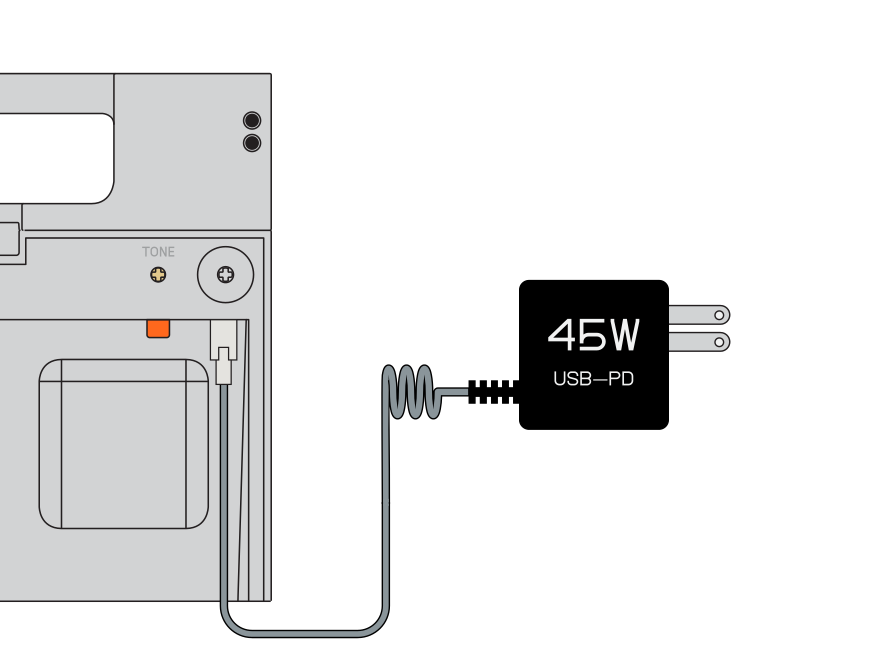
EP–35 can be charged from two of its USB-C ports.
we recommend using the dedicated charge port inside the storage compartment.
a USB-PD charger that supports a minimum of 45W of power should be used for optimum charging speed and output power.
lower powered chargers can be used, but charging speed and output power may be limited.
((1))
buttons, dials and knobs
top panel
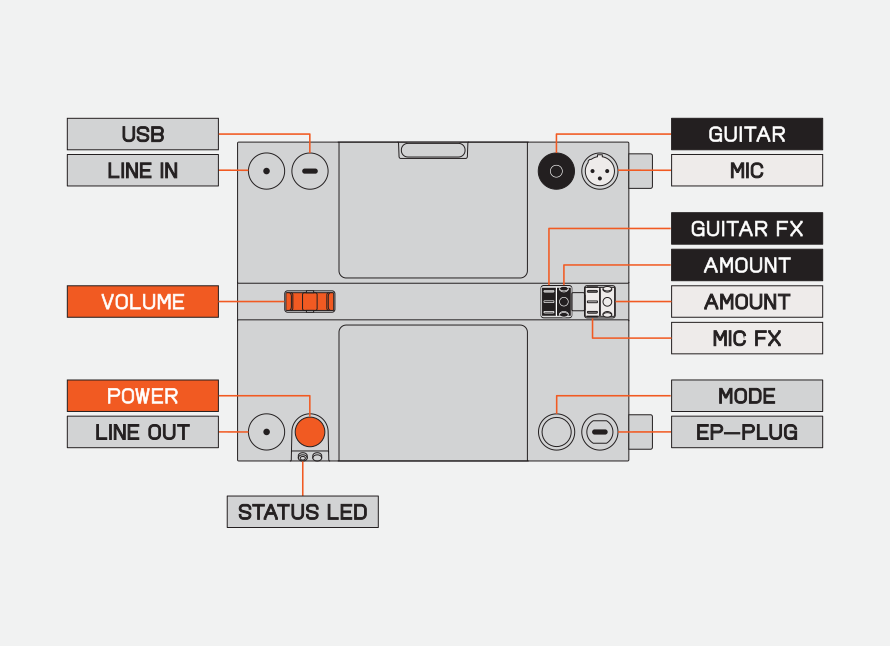
power button

turns the power on and off.
volume dial
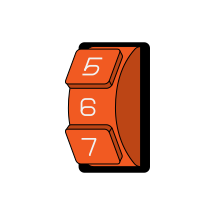
adjusts the volume of the speaker.
NOTE: when mute is active, the volume dial adjusts the headphone volume.
NOTE: when mute is active, the volume dial adjusts the headphone volume.
guitar fx dial
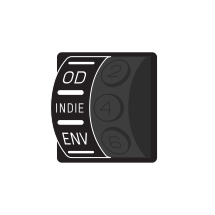
the black guitar fx dial will select from eight different guitar fx, applied to the 6.35mm guitar input.
guitar fx amount
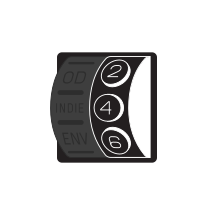
the black guitar fx amount dial controls the intensity of the selected guitar fx.
mic fx
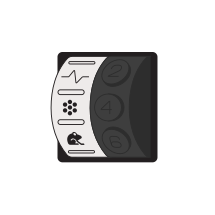
the white mic fx dial will select from eight different mic fx, applied to the xlr microphone input.
mic fx amount
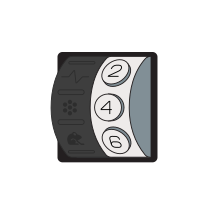
the white mic fx amount dial controls the intensity of the selected mic fx.
mode button
using the mode button
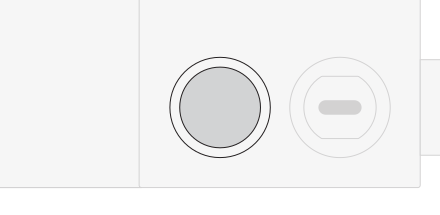
the gray mode button is a multifunctional button. when no accessory is connected to the ep-plug port, the button will control bluetooth functions.
when an accessory is attached to the ep-plug port, the mode button will control the connected accessory. when in this state, use your bluetooth device to control bluetooth functions.
play/pause
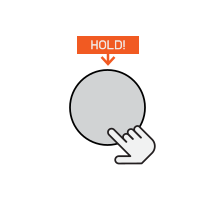
press and hold the mode button to play or pause.
skip/seek forward
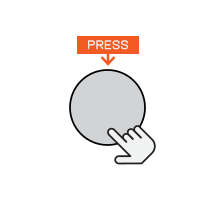
press the mode button to jump to the next track or seek forward (when using the amptenna).
return/seek back
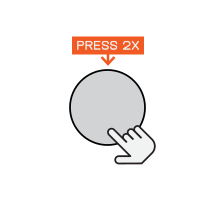
double press to return to the previous track or seek back (when using the amptenna).
inside the storage compartment
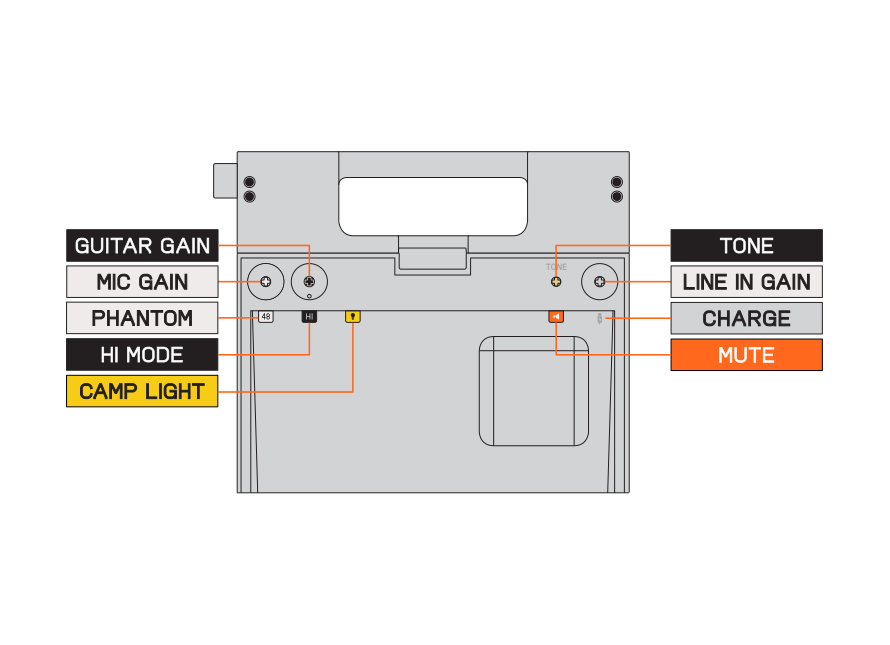
mic gain knob
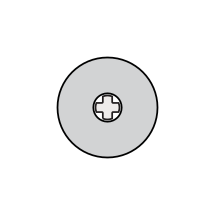
the white mic gain knob adjusts the microphone input gain.
48v phantom power
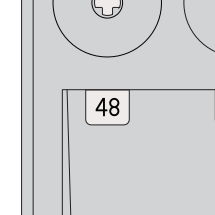
the white 48v phantom power button toggles phantom power on and off. this allows you to use microphones that require phantom power.
guitar gain knob
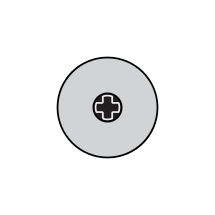
the black guitar gain knob adjusts the guitar input gain.
hi mode button
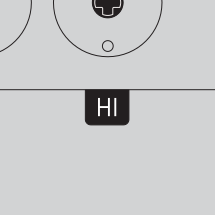
the black hi mode button toggles between two gain settings for the guitar input.
when enabled, the input gain will be lowered by 6dB, ideal for connecting active pickup guitars or fx pedals. this will not reset when EP–35 is powered off.
when enabled, the input gain will be lowered by 6dB, ideal for connecting active pickup guitars or fx pedals. this will not reset when EP–35 is powered off.
camp light button
the yellow camp light button allows you to toggle between the camp light modes.
learn more about the camp light here.
learn more about the camp light here.
tone knob
the beige tone knob adjusts the eq of the speaker.
turning it to the left will add more bass and treble.
turning it right will accentuate mid frequencies.
when centered, no eq is applied.
turning it to the left will add more bass and treble.
turning it right will accentuate mid frequencies.
when centered, no eq is applied.
mute button
the orange mute button will mute the speaker. ideal when using headphones connected to the headphones out.
when muted, the status led will blink white. this will reset when EP–35 is powered off.
when muted, the status led will blink white. this will reset when EP–35 is powered off.
line-in gain knob
the dark gray line-in gain knob adjusts the line input gain.
((2))
led light indications
2.1
status led
power on
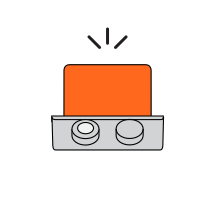
press the orange power button to turn on your EP–35. the status led beneath the power button will light up.
Powered on
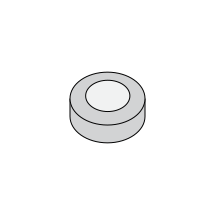
when the status led is white, the EP–35 is powered on. if connected to power and the led is white, the battery is full or not charging.
muted
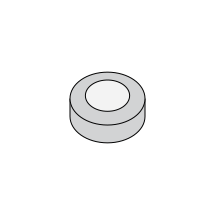
when the status led is blinking white then EP–35 is muted.
charging
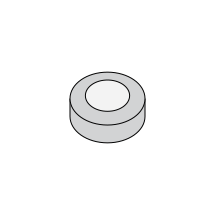
when the status led is pulsating white then EP–35 is charging.
charging power off
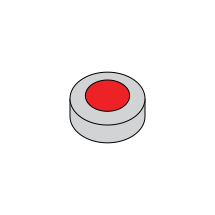
when powered off and charging, the status led will pulsate red.
bluetooth advertise
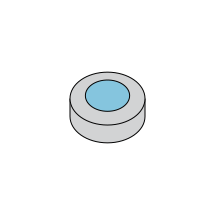
when the status led is pulsating blue then EP–35 is advertising its bluetooth connection.
paired
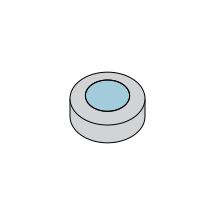
when the status led is blinking blue and fades to white then EP–35 is paired to a bluetooth device.
very low battery
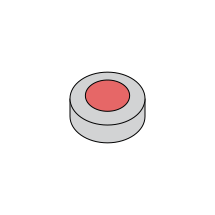
if the status led is blinking red three times after powering on EP–35 then the battery is running very low and should be charged.
broadcast mode
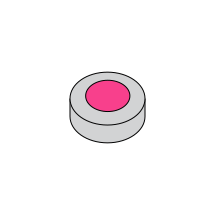
when the status led is solid pink then EP–35 is in broadcast mode.
broadcast paired
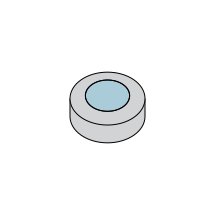
when the status led is blinking blue and fades to pink then EP–35 is in broadcast mode and has paired to a bluetooth device.
updating
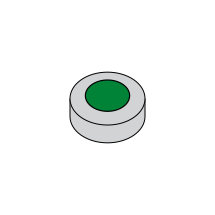
when the status led is blinking green and white then EP–35 is updating.
2.2
camp light
storage compartment opened/closed
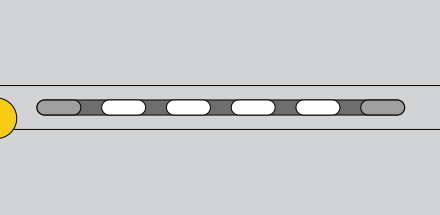
when the camp light is set to ‘auto’ mode and the storage compartment is opened, the camp light will fade on. when it is closed it will fade off.
camp light on
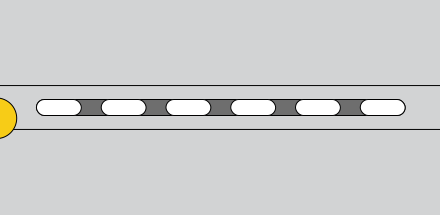
when the camp light is set to ‘on’ mode, all LEDs will stay on, until it is manually turned off.
disco mode
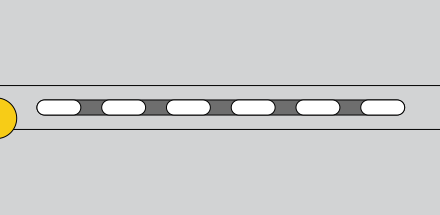
when the camp light is set to disco mode, the LEDs will react to any incoming audio.
battery indicator
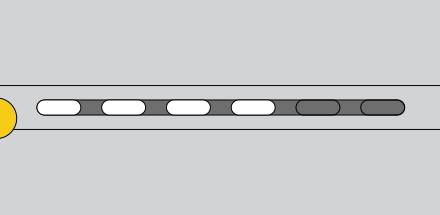
when the speaker is tilted backwards, the camp light will light up and display the current battery life.
2.3
charging port led
more than 27W
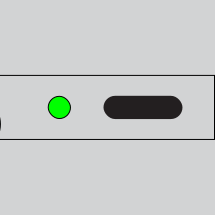
when a USB-PD charger supplying 27W or more of power is connected to the charge port, the charge port led will light up green momentarily.
between 15W and 27W
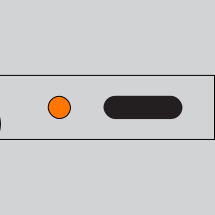
when a usb-pd charger supplying between 15W and 27W of power is connected to the charge port, the charge port led will light up orange momentarily.
less than 15W
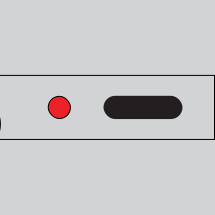
when a USB-PD charger supplying less than 15W of power is connected to the charge port, the charge port led will light up red momentarily.
((3))
usb
EP–35 has three different usb ports, each with a different purpose.
some allow for charging, and some transfer data. here is a breakdown of each.
3.1 usb port
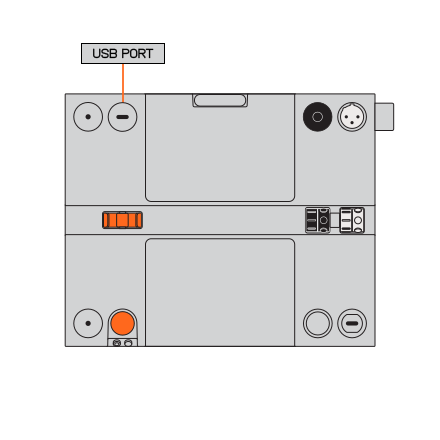
the usb port, located next to the 3.5mm audio input can be used to connect to a computer/phone as a sound card.
this port should be used for software updates and charging. this port supports up to 27W (9v/3a) with usb-pd.
3.2 audio interface
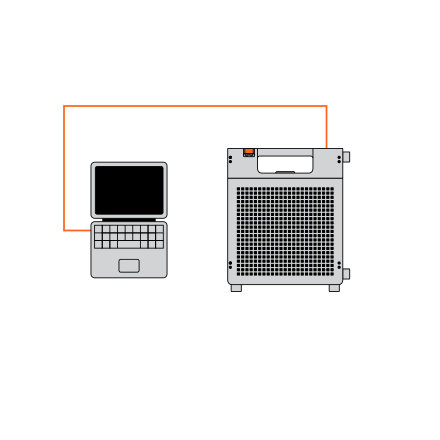
when you connect your EP–35 to a computer with the usb port, you may notice that it comes up as an audio device.
EP–35 allows you to send each input as a separate stereo audio channel to a computer or usb audio host as well as receive a stereo output from your computer. use it to record your jams straight into your favourite daw.
3.3 ep-plug port
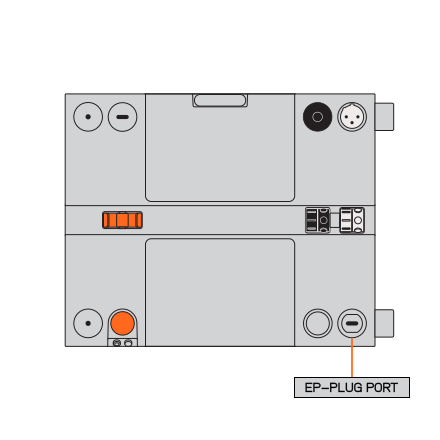
the ep-plug port, located next to the mode button is used to expand the functionality of EP–35 with the ep–plug accessories. it also functions as a usb audio host, allowing usb audio devices such as ko2 and koSIDEKICk to connect to
EP–35.
EP–35.
accessories include the USB–DRIVE and amptenna. when a device is connected, the mode button controls the function of the accessory and bluetooth playback controls must be adjusted from the connected device.
3.4 charge only port
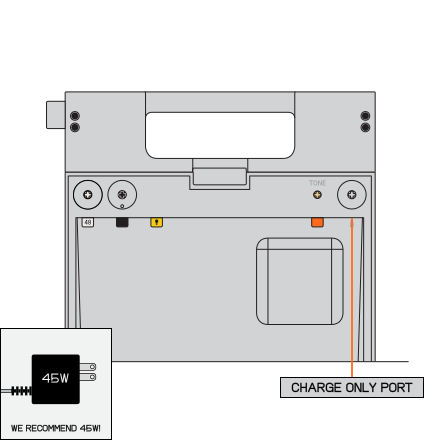
the charge port, located within the storage compartment is used exclusively for charging. this port supports up to 45W (15v/3a) with usb-pd.
when using the charge port the connected cable can be routed through the cable slot on the bottom right side of the storage compartment cover.
((4))
inputs and outputs
EP–35 features inputs for a variety of sound sources.
you can find all inputs and outputs on the top of the speaker.
4.1 line input
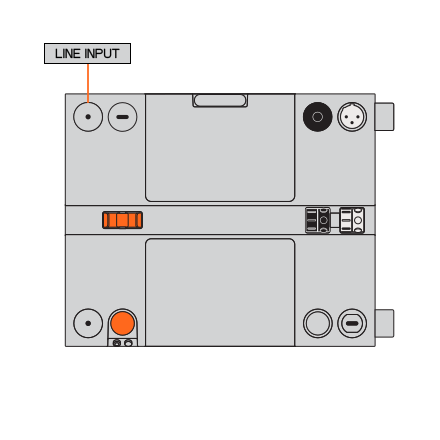
the line input allows you to connect line level devices to EP–35, such as other ep–Series products.
the line input has no fx, and is routed directly to the main output on EP–35.
4.2 guitar input
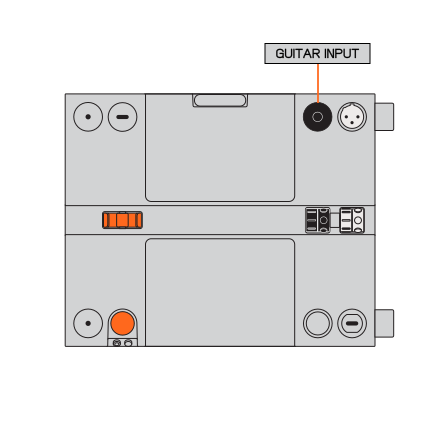
the guitar input allows you to connect a guitar or bass to EP–35. when running your guitar through an fx pedal, make sure to enable hi mode in the storage compartment.
the guitar input runs through the guitar fx and its gain can be adjusted in the storage compartment.
4.3 microphone input
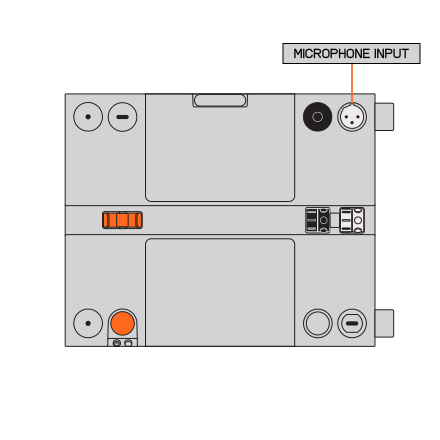
the microphone input allows you to connect a microphone to EP–35. some microphones will require phantom power to produce sound, you can turn on phantom power by pressing the 48 phantom power button in the storage compartment.
the microphone input runs through the microphone fx and its gain can be adjusted in the storage compartment.
4.4 line output
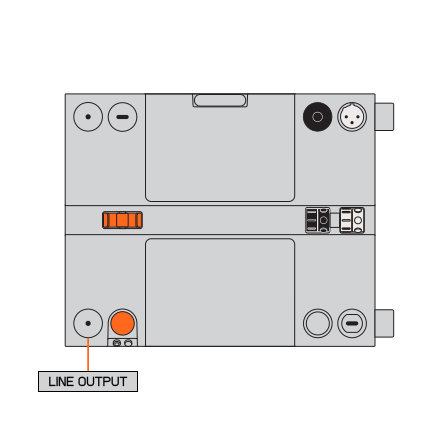
the line output allows you to connect a pair of headphones to your EP–35 or even to daisy chain one EP–35 into another. this output will not respond to volume changes unless the speaker is muted.
you can mute the speaker on EP–35 and have just the headphone output by pressing the mute button in the storage compartment.
((5))
bluetooth
pair a new device
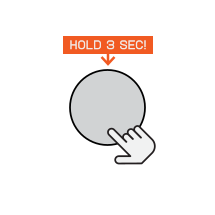
to pair a new device, press and hold the mode button for 3 seconds while the EP–35 is on.
connecting
the status led will start pulsating blue.
“EP–35” will appear in the bluetooth pairing settings on your device, select it to pair to EP–35. the status light will blink blue, then turn solid white when it has paired with your device.
EP–35 will automatically connect to the last paired device when in range.
if EP–35 does not automatically pair to your device, simply open the bluetooth settings on the device and manually pair them.
“EP–35” will appear in the bluetooth pairing settings on your device, select it to pair to EP–35. the status light will blink blue, then turn solid white when it has paired with your device.
EP–35 will automatically connect to the last paired device when in range.
if EP–35 does not automatically pair to your device, simply open the bluetooth settings on the device and manually pair them.
clear paired devices
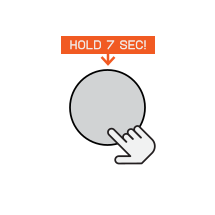
to clear all paired devices, press and hold the mode button for 7 seconds, the status led will blink blue rapidly.
volume control
if you experience low volume while the bluetooth device's volume is at maximum, increase the volume of the EP–35 using the volume dial.
((6))
broadcast mode
EP–35 supports auracast, allowing you to pair multiple EP–35 together as a single bluetooth device, allowing for a more immersive listening experience when listening over bluetooth.
with two EP–35 units you can experience the fantastic sound of EP–35 in stereo. all inputs on all EP–35 units will still play.
enable broadcast mode
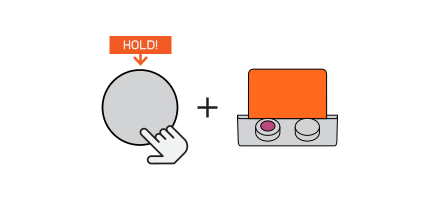
press and hold the mode button while powering on
EP–35 to enable broadcast mode.
EP–35 to enable broadcast mode.
the status led will turn pink.
connect other EP-35 in broadcast mode
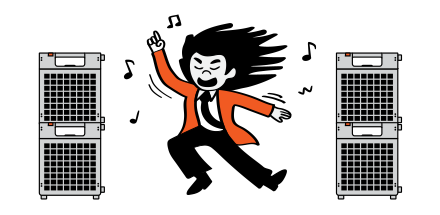
to connect other EP–35 to a broadcasting EP–35, simply enable broadcast mode on any additional EP–35 units.
they will pair automatically and come up as a single bluetooth device.
set left or right
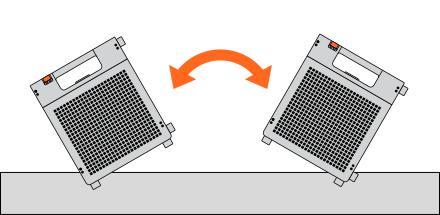
tilt your EP–35 left or right before starting it in broadcast mode to set the speaker as the left or right audio channel.
by default, EP–35 will play in summed mono, unless a left or right channel is selected.
you can set your EP–35 to stay in broadcast mode in the web settings.
you can set your EP–35 to stay in broadcast mode in the web settings.
exit broadcast mode
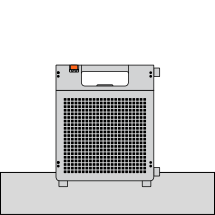
turn off your EP–35 to exit broadcast mode.
if you wish to keep broadcast mode on whenever EP–35 is powered on, you can configure it to do so in the web settings.
if you wish to keep broadcast mode on whenever EP–35 is powered on, you can configure it to do so in the web settings.
((7))
fx
EP–35 has eight guitar fx and eight mic fx, each one imparts a unique characteristic.
each fx can be adjusted with the corresponding amount dial, letting you find the perfect setting.
7.1
guitar
GUITAR fx dial
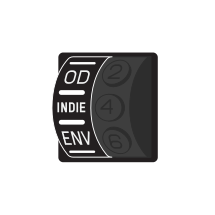
rotate the guitar fx dial to select which guitar fx you would like to apply to the guitar input.
guitar fx amount
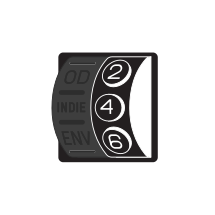
rotate the guitar fx amount dial to adjust the setting of that fx.
clean
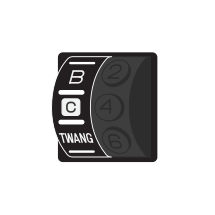
clean applies subtle chorus and reverb to the incoming guitar signal.
amount
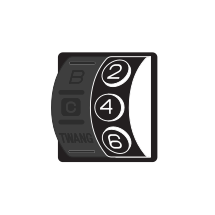
when the guitar fx amount dial is set to 0 no fx will apply to the guitar input, rotating the dial will gradually adjust the amount of reverb and delay applied to it.
twang
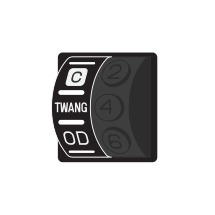
ride the waves, crank up twang and recreate the iconic surf rock sound.
amount
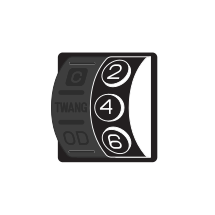
rotating the guitar fx amount dial will gradually adjust the amount of delay, reverb, tremolo and gain applied to the guitar input.
blues
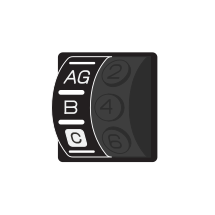
feeling low? turn up the blues and get your rock and roll on.
amount
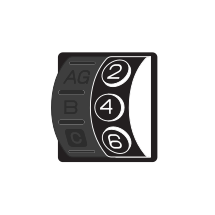
rotating the guitar fx amount dial will gradually adjust the amount of reverb and drive applied to the guitar input.
od
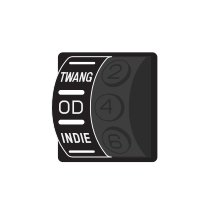
rock out with overdrive, perfect for everything from rock to metal.
amount
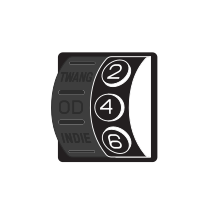
rotating the guitar fx amount dial will gradually adjust the amount of distortion, delay and reverb applied to the guitar input.
indie
not really a fan of major labels? this one’s for you. get that smooth indie tone. also great for pop and ambient.
amount
rotating the guitar fx amount dial will gradually adjust the amount of drive, reverb, tremolo and flanger applied to the guitar input.
env
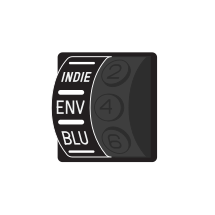
get up, get on up! engage your funk and stay on the scene with env, an auto wah.
amount
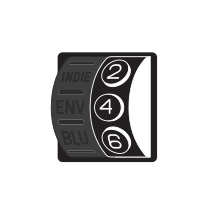
rotating the guitar fx amount dial will gradually adjust the amount of tone, flanger, phaser and delay applied to the guitar input.
ag
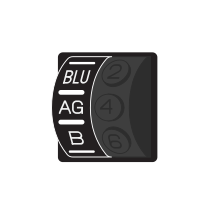
the perfect settings for acoustic guitar. subtle, smooth, warm.
amount
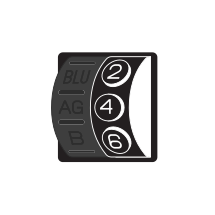
rotating the guitar fx amount dial will gradually adjust the amount of reverb applied to the guitar input.
b
for the low end lovers. engage this fx when you want your bass to sound thick.
amount
rotating the guitar fx amount dial will gradually adjust the amount of tone, flanger and drive applied to the guitar input.
7.2
mic
mic fx dial
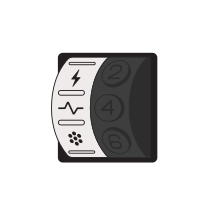
rotate the mic fx dial to select which mic fx you would like to apply to the microphone input.
mic fx amount
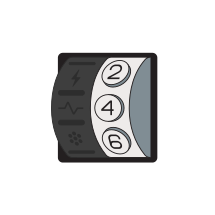
rotate the mic fx amount dial to adjust the setting of that fx.
clean
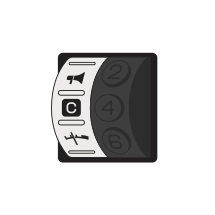
clean applies reverb to the incoming microphone signal.
amount
when the mic fx amount dial is set to 0 no fx will apply to the microphone input, rotating the dial will gradually adjust the amount of reverb applied to it.
radio
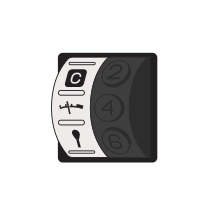
did video kill the radio star? get your radio voice on and find out!
amount
rotating the mic fx amount dial will gradually adjust the tone of the microphone input.
pop
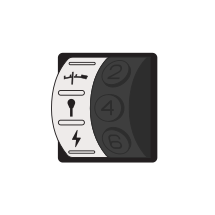
engage pop to get “that” sound. now you’re in the big leagues.
amount
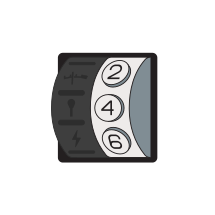
rotating the mic fx amount dial will gradually adjust the amount of reverb, delay and flanger applied to the microphone input.
rock
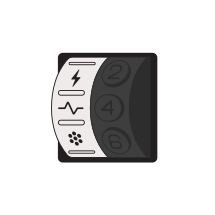
london’s calling, will you pick up? get on stage and channel your inner rock star.
amount
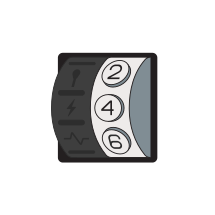
rotating the mic fx amount dial will gradually adjust the amount of delay and reverb applied to the microphone input.
bass synth
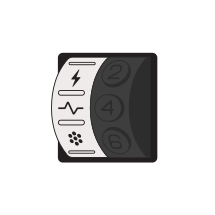
ever dreamt of being a bass synth? finally you can be one!
amount
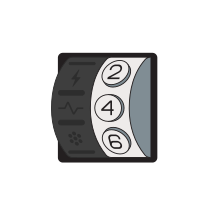
rotating the mic fx amount dial will gradually adjust the phaser amount and the tone of the microphone input.
robo choir
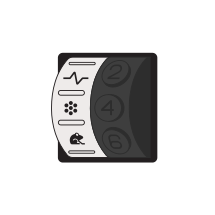
get to dancing mechanic, now you are the robot.
amount
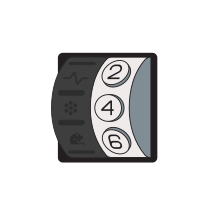
rotating the mic fx amount dial will gradually adjust the amount of reverb applied to the microphone input.
frog
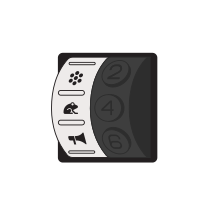
ribbit.
amount
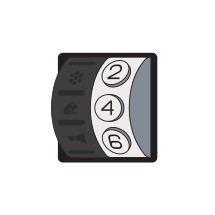
rotating the mic fx amount dial will gradually adjust the amount of reverb, delay and phaser applied to the microphone input.
megaphone
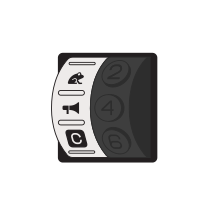
got something to say? get your point across with the megaphone.
amount
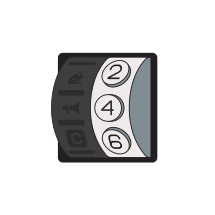
rotating the mic fx amount dial will gradually adjust the amount of tone and delay applied to the microphone input.
((8))
the camp light
unlike most speakers, EP–35 features a camp light. the perfect nighttime glow when you are in nature.
it’s also useful for checking the battery life, and even features a disco mode!
the camp light
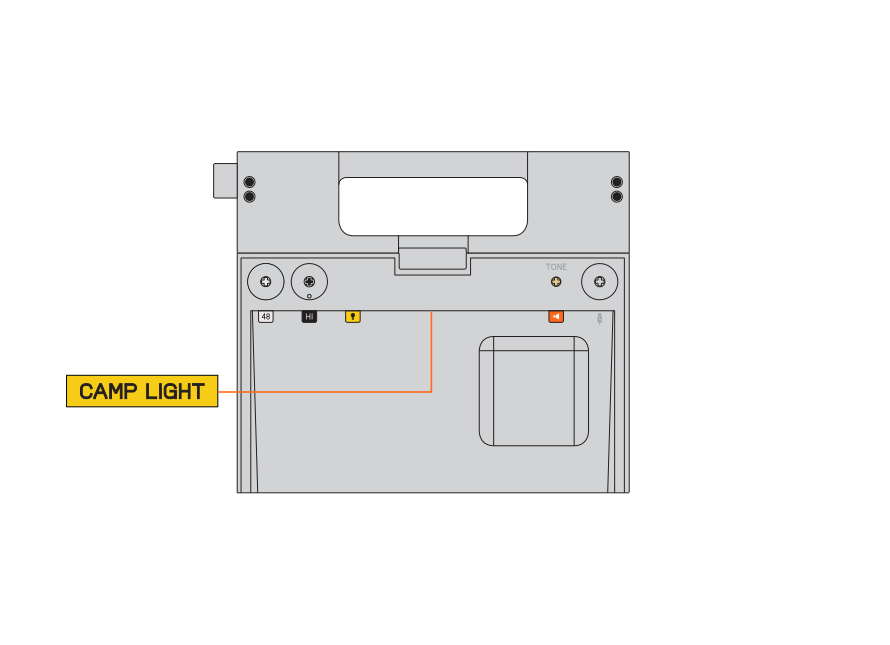
the camp light is located inside the storage compartment on the top lip, between the camp light button and the mute button.
8.1
change camp light setting
change camp light setting
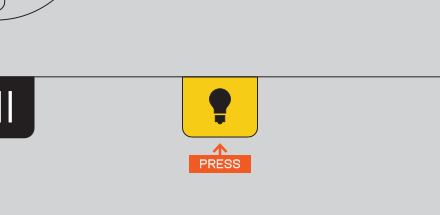
the camp light has three settings: on, off and auto. by default the camp light is set to auto. on will keep the light on when EP–35 is turned on, off will keep it off and auto will turn it on when the storage compartment is opened and off when it is closed. pretty neat.
press the camp light button to switch between on, off and auto camp light modes.
8.2
disco mode
disco mode
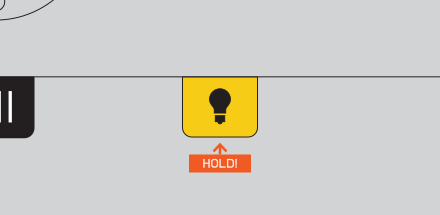
press and hold the camp light button to enter disco mode. this will make the lights react to any audio that plays through the EP–35. turn it off by pressing the camp light button once.
8.3
CHECK BATTERY LIFE
CHECK BATTERY LIFE
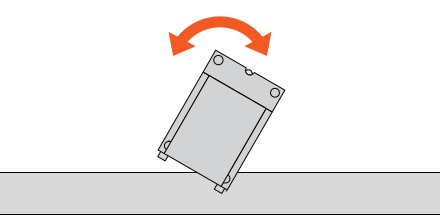
you can also use the camp light to check the battery life. simply face the camp light and tilt the EP–35 away from you.
the number of leds that light up corresponds to the remaining battery life.
((9))
connect your gear
connect your gear
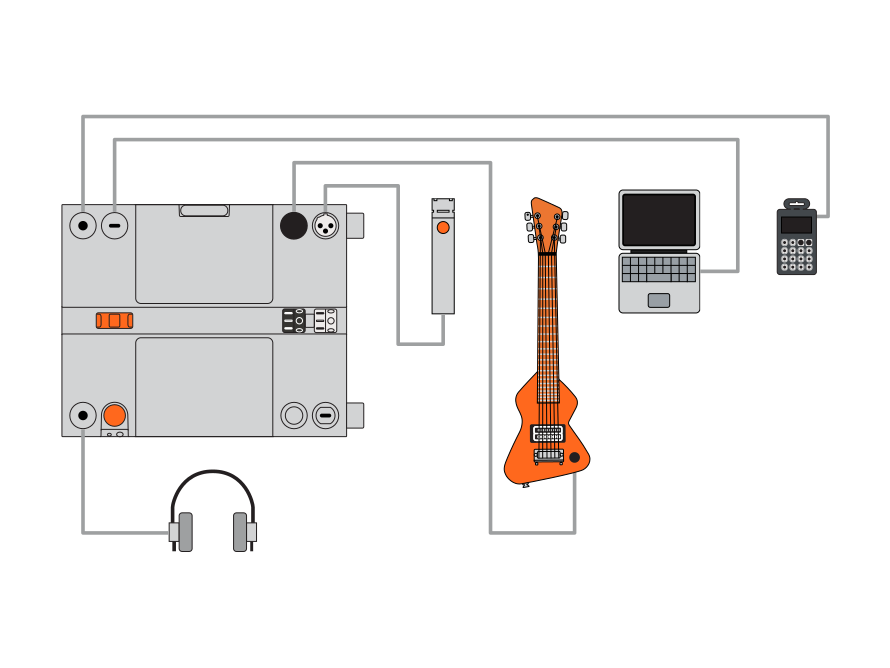
connect a microphone, guitar and pocket operator, monitor them with headphones and then record them multi-channel into a computer with the usb port.
((11))
limiting the volume
in some situations, you may want to limit the maximum volume of your
EP–35, such as when handing it to a child. follow the instructions below to set the maximum volume.
EP–35, such as when handing it to a child. follow the instructions below to set the maximum volume.
power off
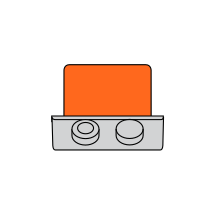
power off your EP–35.
set max volume
set the maximum desired volume on the volume dial.
power on
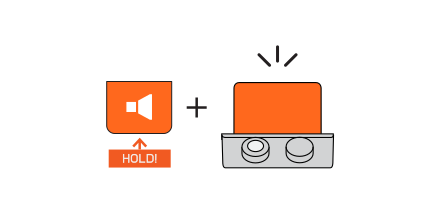
hold the mute button while powering your EP–35 on. this will set the maximum volume of EP–35 to whatever has been selected with the volume dial.
((12))
updating EP–35
it is important to keep your EP–35 up to date with the latest firmware. follow the instructions below to update your EP–35.
power on
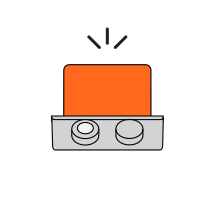
power on your EP–35.
connect
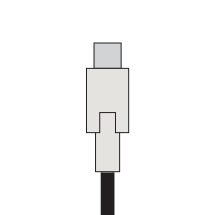
connect one end of a usb–C cable to the usb port on
EP–35. connect the other end to your computer.
EP–35. connect the other end to your computer.
web update utility

open the web update utility with chrome or firefox, other browsers do not support web midi and will not work.
follow the instructions on screen to update your EP–35.
follow the instructions on screen to update your EP–35.
((13))
additional web settings
connecting EP–35 to the web update utility allows you to adjust some additional settings.
country
country allows you to configure the region used when the amptenna is connected.
auracast password
set an auracast password to allow only devices with the same preconfigured password to pair when in broadcast mode.
country allows you to configure the region used when the amptenna is connected.
auracast password
set an auracast password to allow only devices with the same preconfigured password to pair when in broadcast mode.
bluetooth name
give your EP–35 a bluetooth name, this name will be used when connecting to other bluetooth devices.
give your EP–35 a bluetooth name, this name will be used when connecting to other bluetooth devices.
reconnect mode
reconnect mode allows you to enable or disable auto connect. disabling it will mean that you need to pair devices manually to use bluetooth.
reconnect mode allows you to enable or disable auto connect. disabling it will mean that you need to pair devices manually to use bluetooth.
auto enable
auto enable allows you to set broadcast mode as the default when powering on the speaker and pre-configure the audio channel used.
auto enable allows you to set broadcast mode as the default when powering on the speaker and pre-configure the audio channel used.
((14))
signal flow diagram
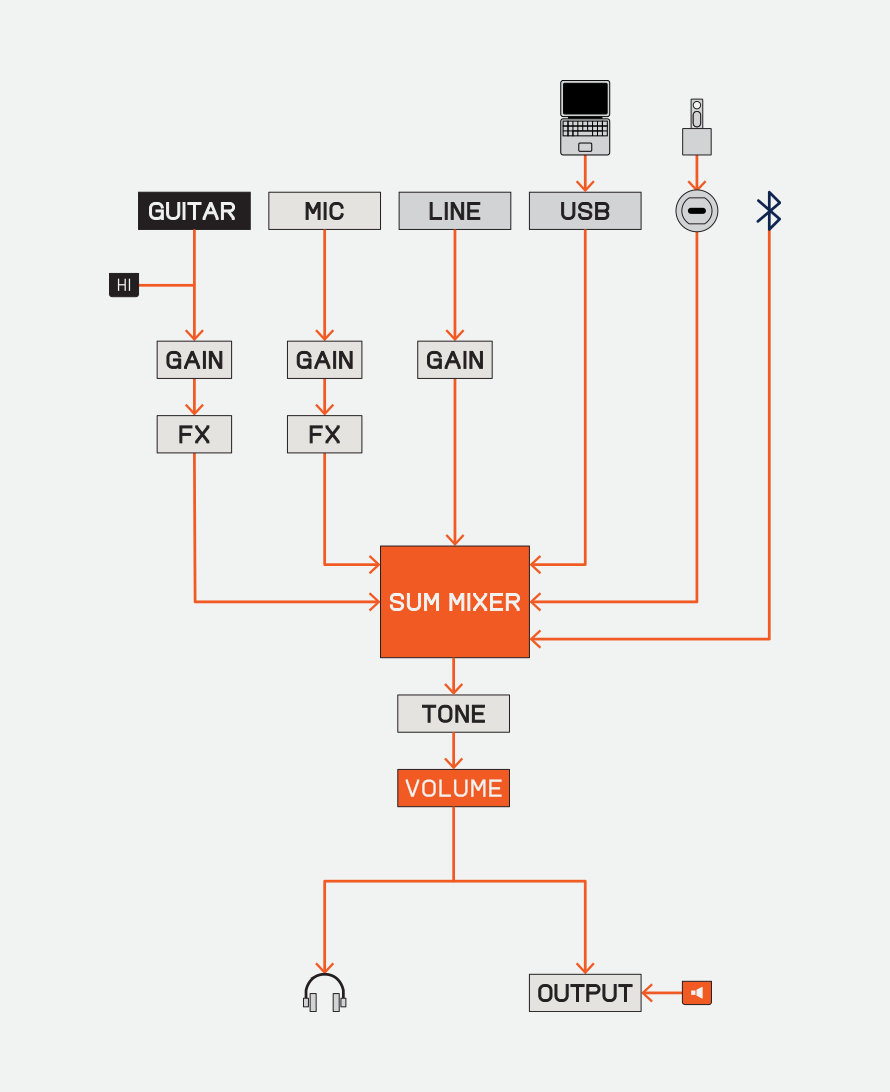
((15))
accessories
15.1
amptenna
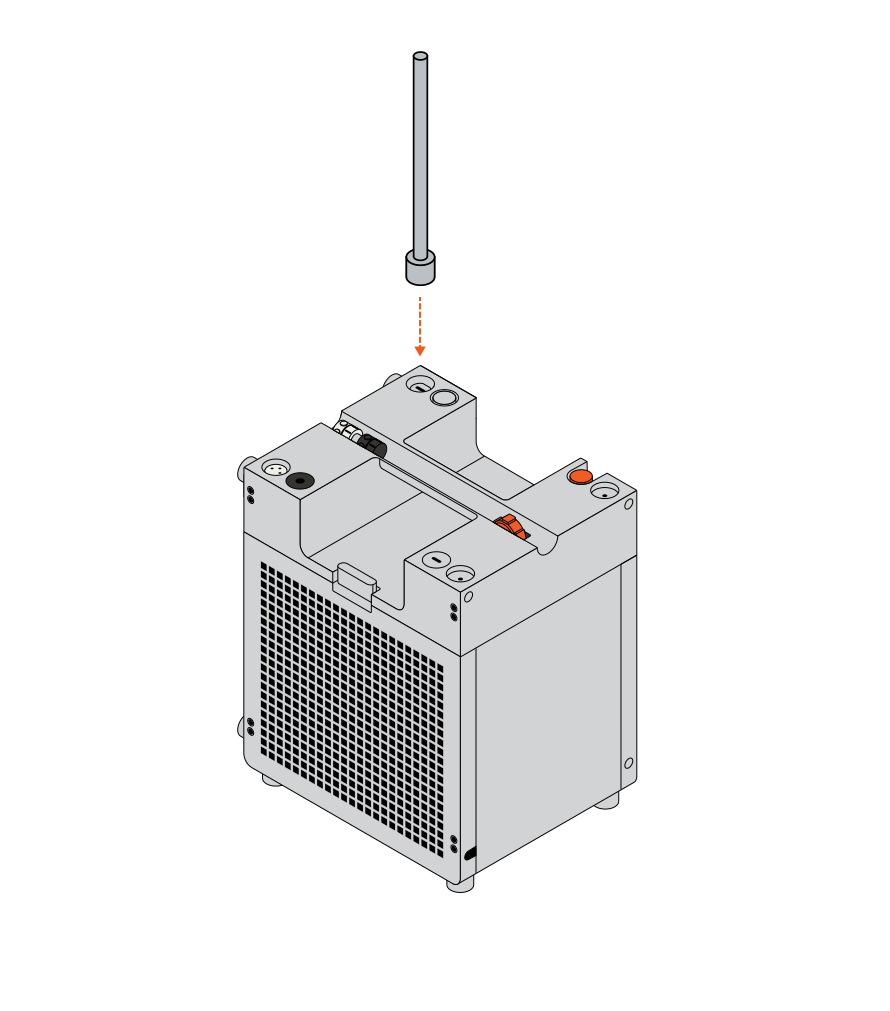
plug in
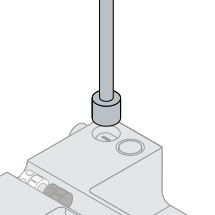
plug your amptenna into the ep-plug port. it will immediately start playing.
seek
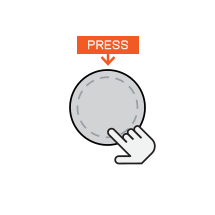
press the mode button once to seek the next station.
seek backwards
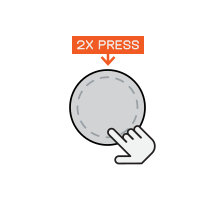
press it twice to seek backwards.
stop/start
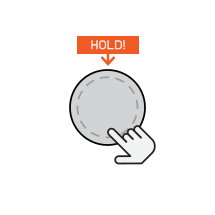
hold the mode button to stop playback, press it to start playback.
if you are in japan, the amptenna will only work when the country setting, configurable when connected to the web update utility is set to japan.
15.2
usb–drive
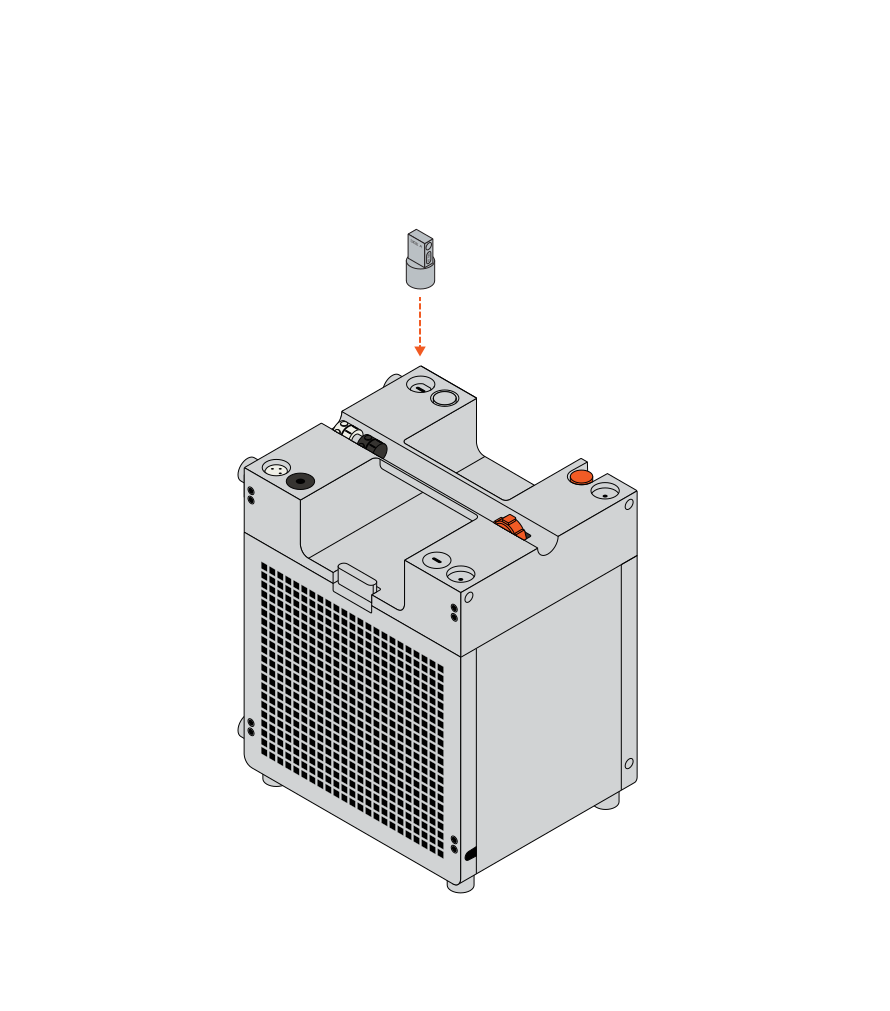
plug in
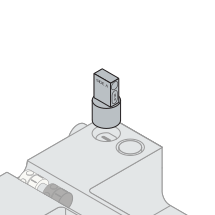
plug your usb–drive into the ep-plug port. it will immediately start playing.
a side
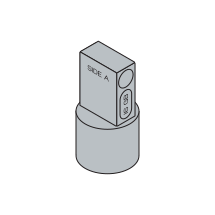
the thumb drive has an a side and a b side. unplug it, flip it and plug it back in to hear the other side.
next loop
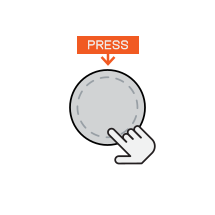
press the mode button once to play the next loop.
previous loop
press it twice to play the previous loop.
stop playback
hold the mode button to stop playback.
start playback
press the mode button to start playback.
EP–35 will play the current loop indefinitely, until you change it.
EP–35 will play the current loop indefinitely, until you change it.
continuous skip
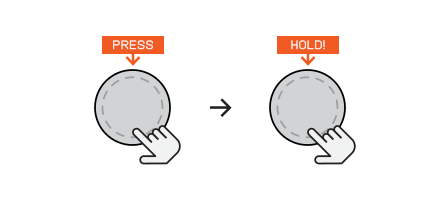
press, release and then press and hold to continuously skip through loops.
continuous rewind
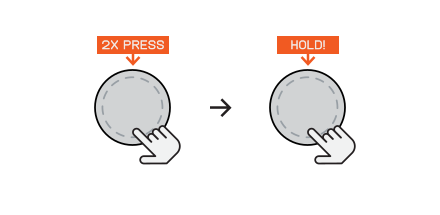
double press, release and then press and hold to continuously rewind back through loops.
try combining the usb-drive with kopedal for seamless looping!
15.3
handy mic
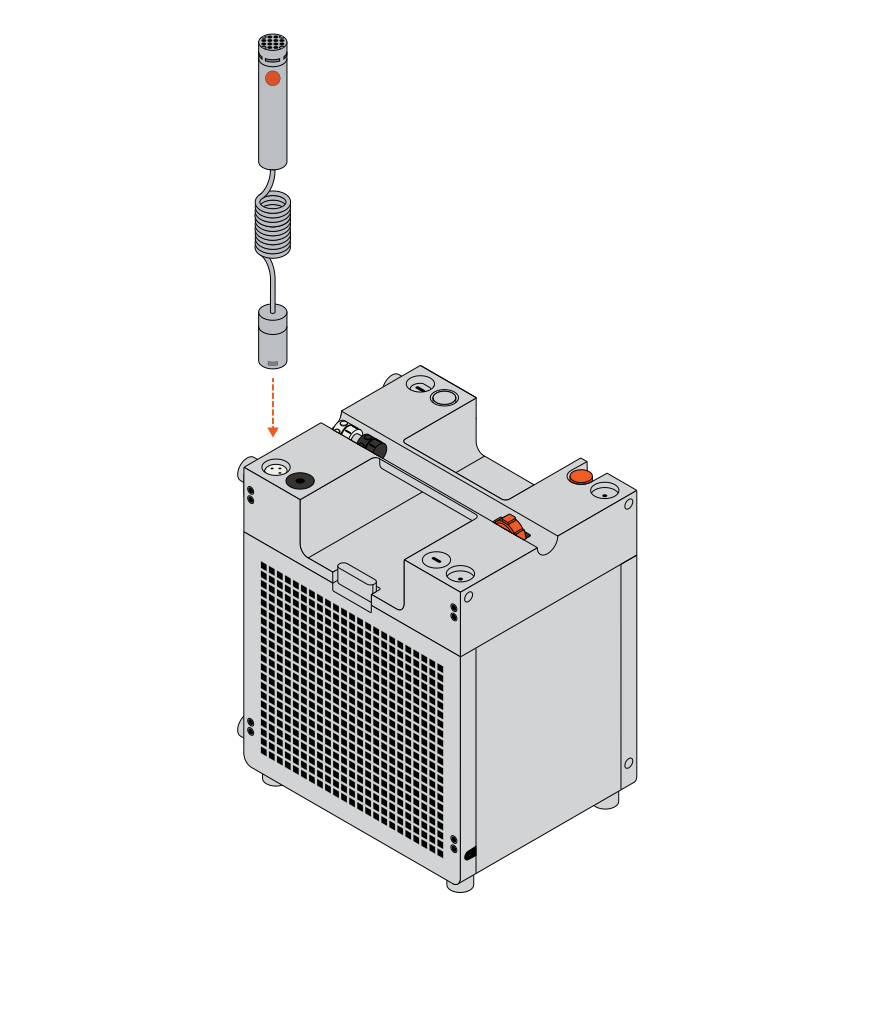
plug in
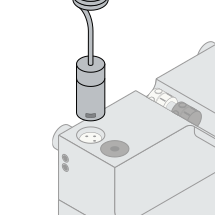
plug your handy mic into the xlr input.
activate mic
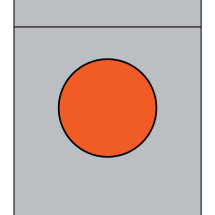
press the orange button on the handy mic and speak or sing into the top of the microphone.
adjust gain
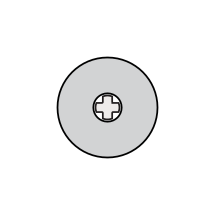
adjust microphone gain in the storage compartment.
fx
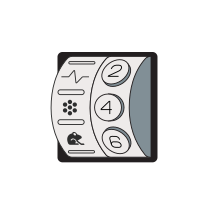
add fx with the microphone fx and amount dials.
when using the handy mic with other devices it will need 48V phantom power.
15.4
k.o.-dock kit
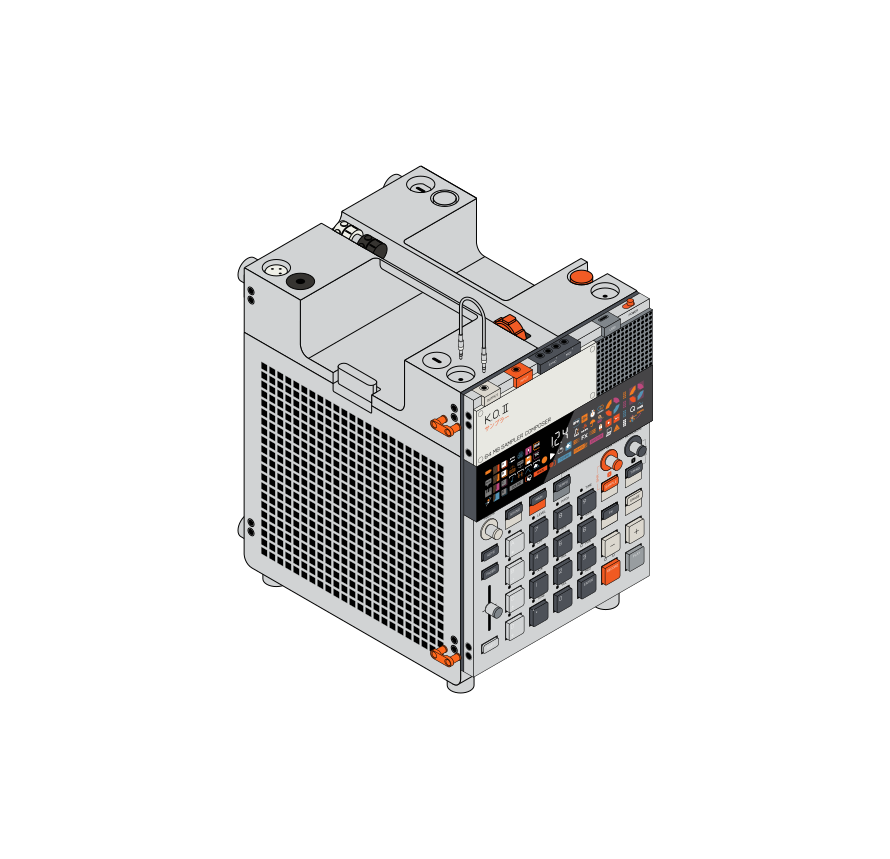
connect pegs
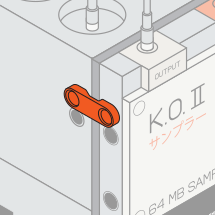
connect the ep pegs between the ep series device and the EP–35. the K.O.–dock kit includes four pegs, two for each side.
plug in
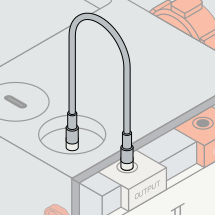
plug your ep series device, such as a ko2 into the line-in on EP–35 using the provided 3.5mm cable.
15.5
ko-pedal
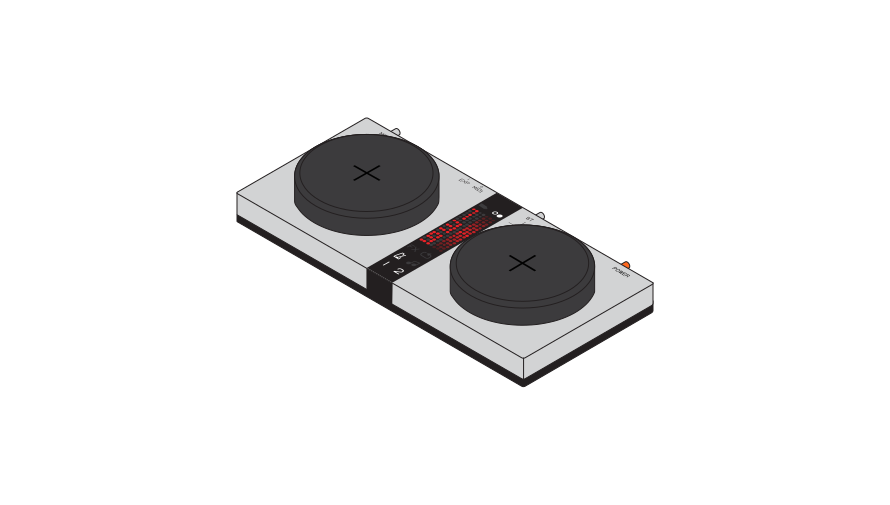
kopedal expands the functionality of EP–35.
you can learn more about how it works in the full kopedal guide.
((16))
midi input
EP–35 has some simple midi control, allowing you to adjust the levels of each input with an external controller.
this can be accessed with cc number 7 on channels 1 to 6.
this can be accessed with cc number 7 on channels 1 to 6.
channel
input being controlled
cc
range
channel 1
guitar
7
0-127
channel 2
microphone
7
0-127
channel 3
line-in
7
0-127
channel 4
bluetooth
7
0-127
channel 5
usb
7
0-127
channel 6
ep–plug port
7
0-127
((17))
technical specifications
3.5mm stereo line inputSNR: 92 dBA
analog gain: 0-12 dB
max input level: 8.2 dBu, 2.0Vrms
3.5mm stereo line outputSNR: 92 dBA
max output level: 2.2 dBu, 1.0Vrms
XLR microphone inputSNR: 100 dBA
analog gain: 0-54 dB
max level: -0.7 dBu, 0.7Vrms
6.35mm mono guitar inputSNR: 100 dBA
analog gain: 0-18 dB
max level: -6.8 dBU, 0.35Vrms (default input mode)
8dBU, 2.0Vrms (hi input mode)
analog gain: 0-12 dB
max input level: 8.2 dBu, 2.0Vrms
3.5mm stereo line outputSNR: 92 dBA
max output level: 2.2 dBu, 1.0Vrms
XLR microphone inputSNR: 100 dBA
analog gain: 0-54 dB
max level: -0.7 dBu, 0.7Vrms
6.35mm mono guitar inputSNR: 100 dBA
analog gain: 0-18 dB
max level: -6.8 dBU, 0.35Vrms (default input mode)
8dBU, 2.0Vrms (hi input mode)
usb-audio via usb portusb device
2 channel input
8 channel output
USB-AUDIO VIA EP-PLUG PORTusb host
2 channel input
loudspeaker configmono 1+1
4" inch woofer
1" inch tweeter
output power35 watt
frequency response50 Hz - 20 Khz (-6dB)
2 channel input
8 channel output
- channel 1-2, stereo mixdown
- channel 3-4, guitar
- channel 5-6, microphone
- channel 7-8, line-in
USB-AUDIO VIA EP-PLUG PORTusb host
2 channel input
loudspeaker configmono 1+1
4" inch woofer
1" inch tweeter
output power35 watt
frequency response50 Hz - 20 Khz (-6dB)
max spl @ 1m
94dB
bluetoothversion 5.3
le audio
auracast
bluetooth frequency range2400 – 2483.5 MHz
bluetooth transmitter power< 10dBm
charge only port5V/3A, 9V/3A, 15V/3A DC input
usb port5V/3A, 9V/3A DC input
ep-plug port5V/0.9A DC output
94dB
bluetoothversion 5.3
le audio
auracast
bluetooth frequency range2400 – 2483.5 MHz
bluetooth transmitter power< 10dBm
charge only port5V/3A, 9V/3A, 15V/3A DC input
usb port5V/3A, 9V/3A DC input
ep-plug port5V/0.9A DC output
battery type
Lithium-ion 20.1Wh (7.2V/2800mAh)
charging time2 hours
play time12 hours (when volume is at 5)
EP–35 enters standby after 10 minutes of inactivity and resumes automatically when audio is detected.
standby power<0.5W
operating temperature10 °c to 40 °c (50°f to 104°f)
storage temperature-10 °c to 50 °c (14°f to 122°f)
relative humidity20% to 90% non-condensing
Lithium-ion 20.1Wh (7.2V/2800mAh)
charging time2 hours
play time12 hours (when volume is at 5)
EP–35 enters standby after 10 minutes of inactivity and resumes automatically when audio is detected.
standby power<0.5W
operating temperature10 °c to 40 °c (50°f to 104°f)
storage temperature-10 °c to 50 °c (14°f to 122°f)
relative humidity20% to 90% non-condensing
((18))
factory reset
should you wish to reset EP–35 back to its factory settings you can do so by following the instructions below
power off
power your EP–35 off.
factory reset
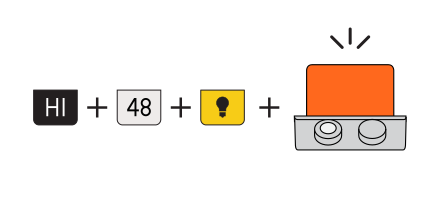
hold the hi, phantom power and camp light buttons while powering on your EP–35. the status LED will blink white five times.
((19))
credits

beta testers
brandon withrow
djcuvcuv (chris covney)
lane wills
Marcus Dahlqvist (tocke)
matthew williams
ÖzUm Itez