sometimes you will need to press buttons in sequence, sometimes in combination. these illustrations and texts will help you to follow along in the guide.
to press a button, tap it and then release. to hold a button, press it and keep it pressed down. many of the knobs and buttons have different functionality depending on the context.
single press
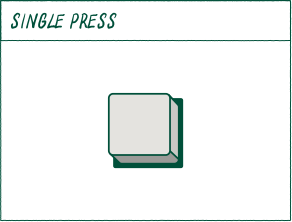
a single button in a cell is for a SINGLE press.
combination press
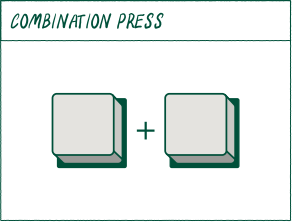
multiple buttons in a cell divided by a plus is for a combination press.
sequence press
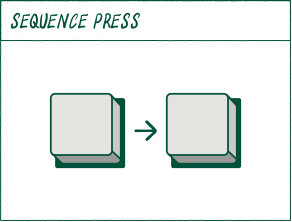
multiple buttons in a cell divided by an arrow is for a sequence press.
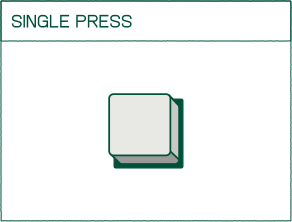
a single button in a cell is for a SINGLE press.
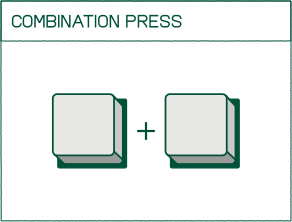
multiple buttons in a cell divided by a plus is for a combination press.
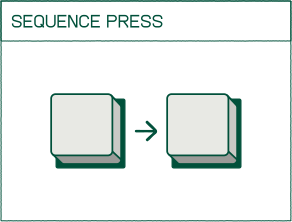
multiple buttons in a cell divided by an arrow is for a sequence press.
single hold
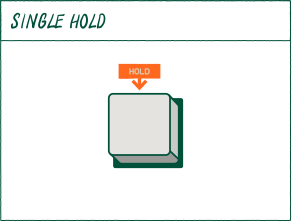
the hold icon above a single button means you’re supposed to long hold.
combination hold
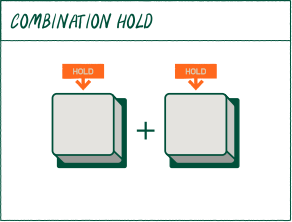
multiple buttons divided by a plus is for a combination hold.
sequence hold
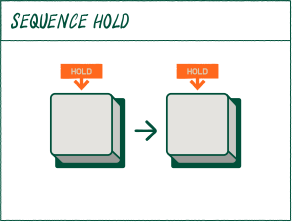
HOLD THE FIRST BUTTON, THEN RELEASE AND HOLD THE SECOND BUTTON.
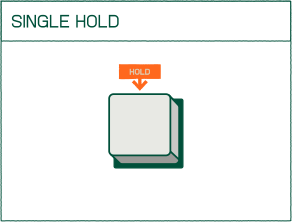
the hold icon above a single button means you’re supposed to long hold.
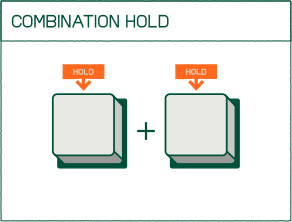
multiple buttons divided by a plus is for a combination hold.
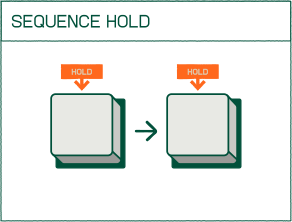
HOLD THE FIRST BUTTON, THEN RELEASE AND HOLD THE SECOND BUTTON.
single tap
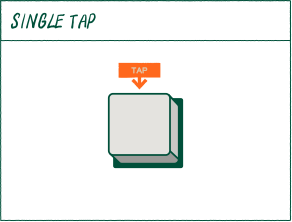
the tap icon above a single button means you’re supposed to press the button and release it.
tap and hold
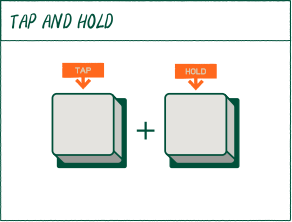
multiple buttons divided by a plus is for a combination tap and hold.
tap, then hold
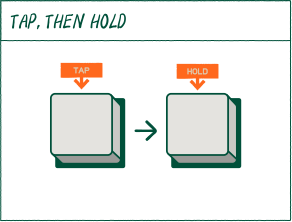
multiple buttons in a cell divided by an arrow is for a sequence hold.
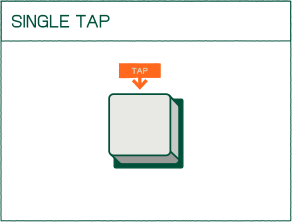
the tap icon above a single button means you’re supposed to press the button and release it.
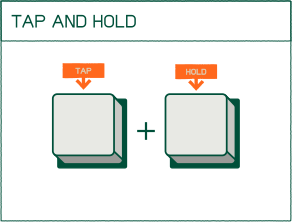
multiple buttons divided by a plus is for a combination tap and hold.
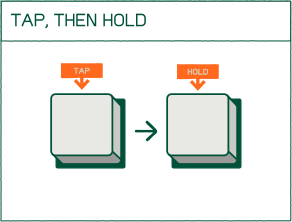
multiple buttons in a cell divided by an arrow is for a sequence hold.
pads
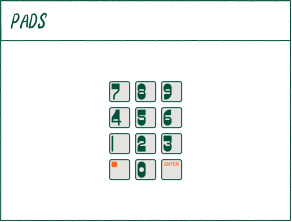
the pads will show when any paed can be pressed or a value typed using them.
pads blinking
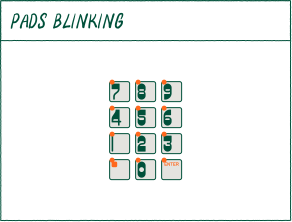
when the pad leds are blinking, it’s displayed with small red dots above the pads.
press pads
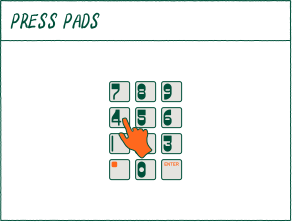
when pads should be pressed to start an action on the device a hand will show to describe this.
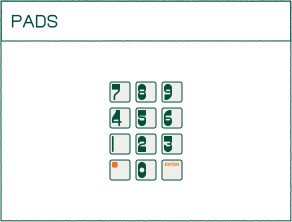
the paeds will show when any paed can be pressed or a value typed using them.
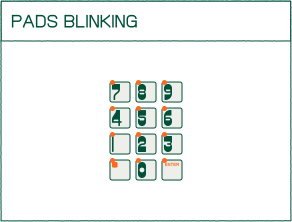
when the paed leds are blinking, it’s displayed with small red dots above the paeds.
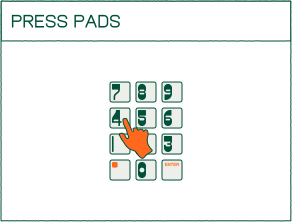
when paeds should be pressed to start an action on the device a hand will show to describe this.
x / y parameter
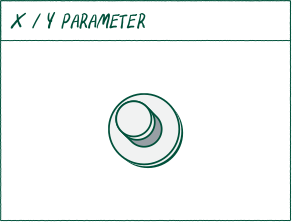
when a knob is shown in a cell this describes TURNing the KNOB.
fader positions
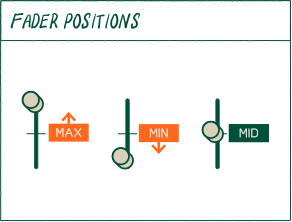
the fader icon will show either one of the three settings: upwards for maximum / downwards For minimum / middle for the mid setting.
time code view
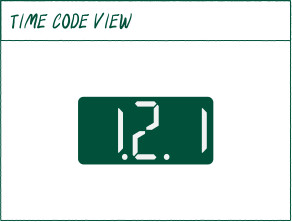
when the time code view is shown in a cell the function of that view is described below.
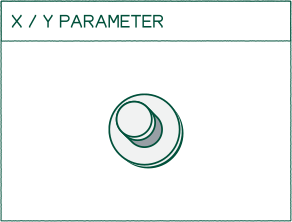
when a knob is shown in a cell this describes TURNing the KNOB.
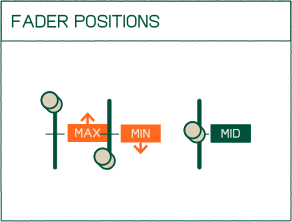
the faedr icon will show either one of the three settings: upwards for maximum / downwards For minimum / middle for the mid setting.
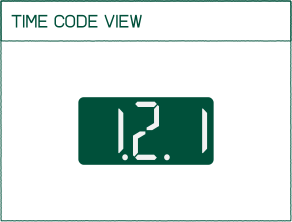
when the time code view is shown in a cell the function of that view is described below.
icon view
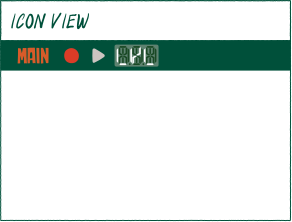
icons that are lit up on the display in some scenarios will show in the bar running across the top.
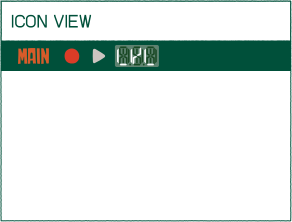
icons that are lit up on the display in some scenarios will show in the bar running across the top.

